These are instructions on how to unlock, jailbreak and activate your iPhone using iLiberty+.
Before following these instructions you should have already restored your iPhone to 1.1.4 using iTunes. You should have the iPhone connected to your dock/computer and iTunes should have detected the iPhone after restore at least one once!
You can find the Windows version of this tutorial here.
Step One Download iLiberty+ 1.2 from iLiberty+ (iLibertyX.dmg download no longer available) to your desktop.
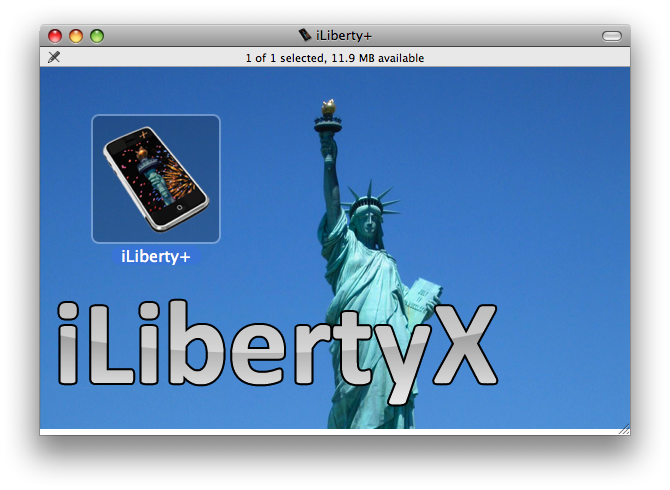
Step Two Double click the downloaded file (iLibertyX.dmg) on your desktop.
Step Three Double click the iLiberty icon to launch the program. NOTE***: You could also drag this icon into your Applications folder to permanently install it.
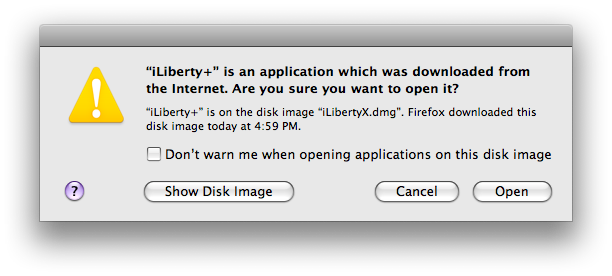
Step Four You will be warned that you downloaded iLiberty+ from the internet. Click the Open button.
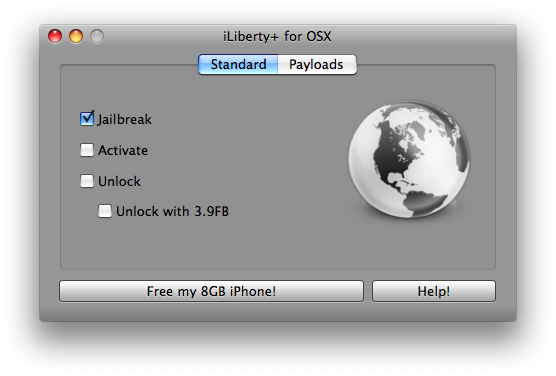
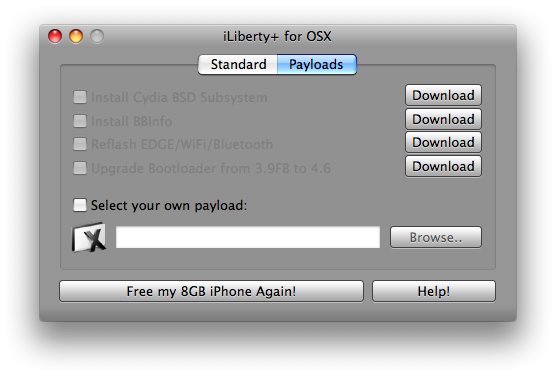
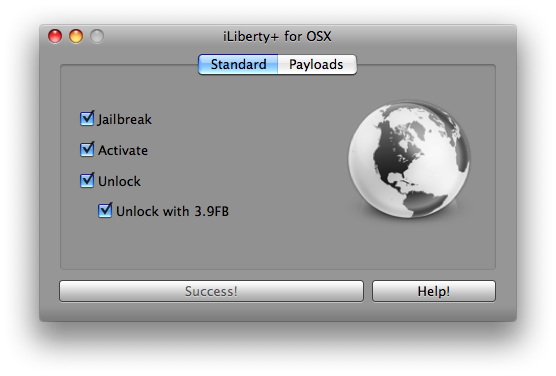
Step Five iLiberty+ will open onto the standard tab.
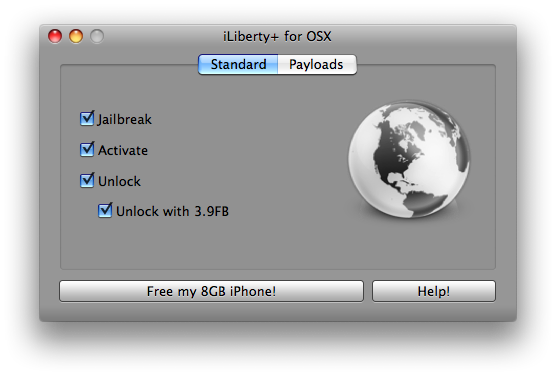
Check the operations you would like to perform. If you are unlocking you would most likely choose all 4 options!
Step Six Click to select the Payloads tab. From here you can select additional payloads to install while unlocking or jailbreaking. We will leave this alone for now and go back to the Standard tab. Note***: A tutorial on how to download and install payloads will be posted in the near future.
Step Seven Click the Free My *GB iPhone! button to begin.
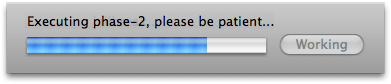
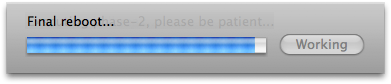
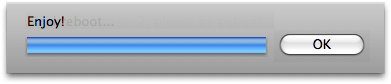
Step Eight Once the unlock is complete you will see an Enjoy! message. Click the OK button to enjoy your newly unlocked iPhone!
THANKS***: A lot of thanks go out to AViegas, George Zhu, Dev Team, and whomever else contributed to this release!
Get the iClarified Daily Newsletter
Apple news, rumors, tutorials, price drop alerts, in your inbox every evening, free.
Unsubscribe at any time.
Success!
You have been subscribed.
Add Comment
Would you like to be notified when someone replies or adds a new comment?
Yes (All Threads)
Yes (This Thread Only)
No
Notifications
Would you like to be notified when we post a new Apple news article or tutorial?
I did it! But one problem... no signal! Why? I did redo Pwnage again and restore and unlocked again and again but still no server. Anyone know about this? Hey Tobazred, just use the Pwnage Tool, don't use iLiberty.
I'd love to help, but unfortunately I'm not in any position to advice. All day of trying to unlock without any success has given my headache. I can only say good luck!
I accidentally hit upgrade iphone recently in iTune, forgetting that my iphone 1.1.4 bought in May08 in Singapore, was bought unlocked and jailbroke. I've restored my phone in iTune to factory settings, won't access my non-AT&T SIM in Australia. I have tried a number of unlocking instructions, including the one click iLiberty+, Ziphone, and iNdependence (Mac) software, but none of them have successfully unlocked my iphone. I'm not a techhead, but I can follow instructions.
Has anyone encountered the same problem, and can point me in the right direction? Thanks, I'd much appreciated.
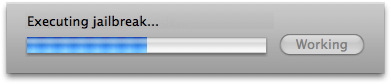
Dear iClarified, I tried to unlock my iPhone using iLiberty+ but it seem to be stuck in 'Executing Jailbreak'. How long should I wait for, hours? because it is already about two hours... still not moving to 'Executing Phase-2, Please Be patient...' Do you know why, how & how long it should be? The history is I've just downgraded my iPhone back and just got success after following your steps after 4 days phone-less. Trying to follow others step & get struggling with errors 1604. So please help me and let me know. Thanks.
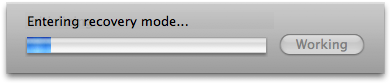
How long does the unlock, active and jailbreak process on iLiberty+ take? I have been on the entering recovery mode for at least 5 minutes now. Is this normal? What am I doing wrong. I have a 1.1.4 OTB iphone, and I just want to unlock it to be able to use my local carrier SIM in Australia.
It works perfectly. I had an OTB 1.1.2, jailbreaked with stealthsim. Did a safety backup, sync and then a restore to 1.1.4 and used iLiberty+. Afterwards I could use my safety backup to "restore" my usersettings and the sync the phone again and Voìla! Everything the same as before but with 1.1.4.
@ Michael . . . if by "How do I get the 1.1.4 firmware? " you are really asking . . . how do you download the necessary firmware to install on your iPhone then you should just head over to a place that links you to the firmware. Download it to your DESKTOP or folder of choice. Once you are ready to RESTORE, connect your iPhone and Hold down the SHIFT key (Windows) or Option/ALT-key (Mac) on your keyboard while clicking RESTORE. You may download the firmwares from . . . https://www.iclarified.com/entry/index.php?enid=750 and thats how you update your iPhone into 1.1.4. Hopefully that helps . . . remember to read these instructions a minimum of three times to comprehend what you will be doing then its basically following the directions exactly.
@ Michael . . . RESTORE to 1.1.4 . . . do not UPDATE to 1.1.4 (it seems counter intuitive since you may be thinking how to I restore to a firmware I never had . . . logically it make sense to update). If you need an URL for guidance just scroll up to the TOP of this page and it read VERBATIM, "Before following these instructions you should have already restored your iPhone to 1.1.4" . . . keyword there is "RESTORED". Hopefully that helps!
N00b question:
How do I get the 1.1.4 firmware? After reading Chris's post below, I'm wondering whether I should click on the UPDATE button to get 1.1.4 or not. If I dont click that, how would I get 1.1.4? Any URLs someone can point me to?
Hey
I got a problem with my iPhone i wanted to jailbreak and unlock it with iLiberty+ it stopped during the process and my iPhone showed the message BSD root:md0, major 2, minor 0 I stopped this process with plugging out the iPhone now it still shows the message, but y ac doesn't recognize the iPhone anymore, please help me





![Apple Releases First Betas of iOS 27, iPadOS 27, macOS 27 to Developers [Download]](/images/news/101120/101120/101120-160.jpg "Apple Releases First Betas of iOS 27, iPadOS 27, macOS 27 to Developers [Download]")









![Apple Watch Series 11 is Back on Sale for Just $299 [Deal]](/images/news/101081/101081/101081-160.jpg "Apple Watch Series 11 is Back on Sale for Just $299 [Deal]")
![AirPods Max 2 Drop to New All-Time Low of $499 [Deal]](/images/news/101063/101063/101063-160.jpg "AirPods Max 2 Drop to New All-Time Low of $499 [Deal]")
![AirPods Max 2 Hit All-Time Low Price of $509 ($40 Off) [Deal]](/images/news/101039/101039/101039-160.jpg "AirPods Max 2 Hit All-Time Low Price of $509 ($40 Off) [Deal]")
![New 13-Inch M5 MacBook Air Hits All-Time Low Price of $899.99 [Deal]](/images/news/100969/100969/100969-160.jpg "New 13-Inch M5 MacBook Air Hits All-Time Low Price of $899.99 [Deal]")
![AirPods Pro 3 Drop to $199 Ahead of Memorial Day [Deal]](/images/news/100935/100935/100935-160.jpg "AirPods Pro 3 Drop to $199 Ahead of Memorial Day [Deal]")
