These are instructions on how to unlock the iPhone 3G and 3GS using BlackSn0w. To follow these instructions you must be on the 05.11.07 baseband and have already jailbroken.
If you have not already jailbroken it will be easier to follow one of these tutorials which will walk you through both jailbreaking and unlocking. - Windows - Mac
To check your baseband you can follow these instructions.
Lets begin...
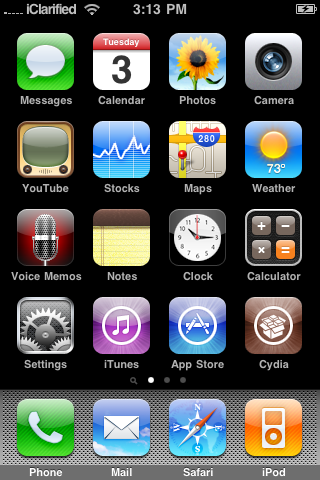
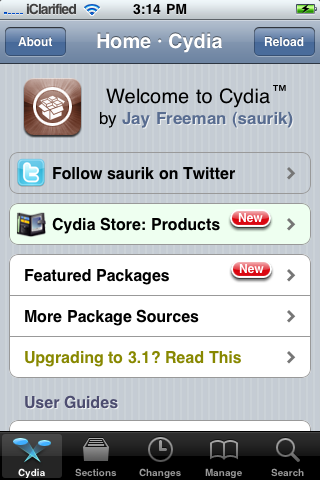
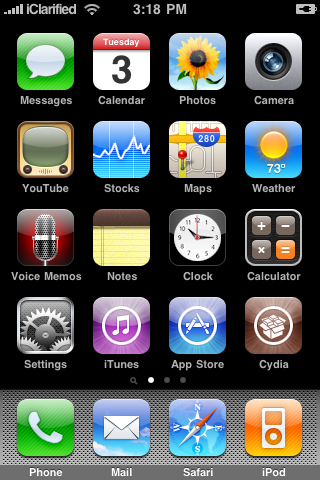
Step One Press to launch Cydia from your iPhone Springboard.
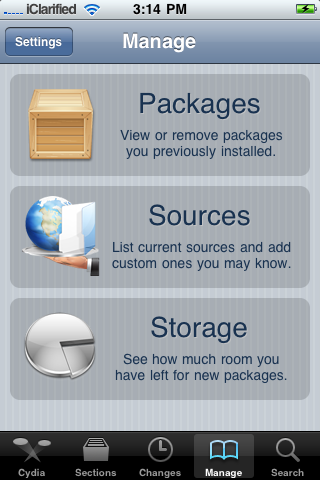
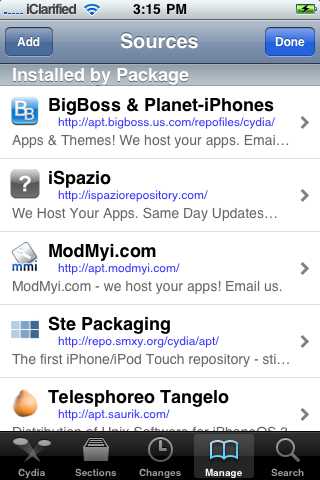
Step Two Press to select Manage from the tabs at the bottom of the screen.
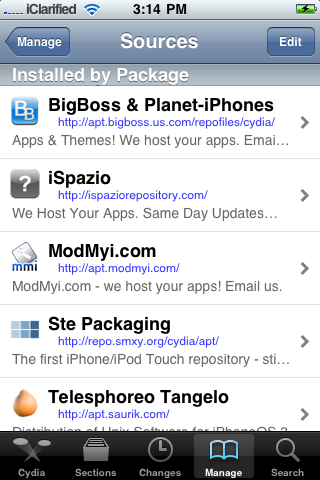
Step Three Press the large Sources button.
Step Four Press the Edit button at the top right of the screen.
Step Five Press the Add button at the top left of the screen.
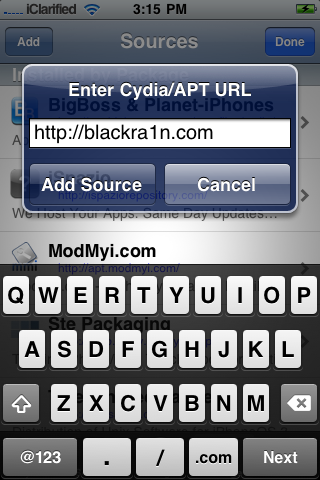
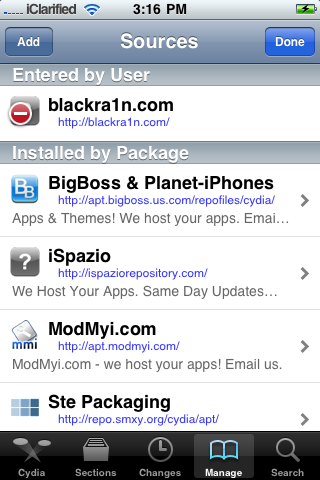
Step Six Input http://www.blackra1n.com as the source address then press the Add Source button. Once Cydia has added the source press the large Return to Cydia button.
Step Seven Press the Done button at the top right of the screen.
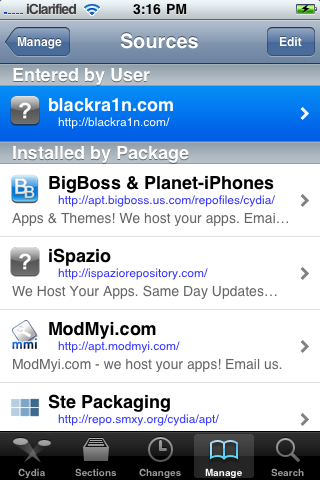
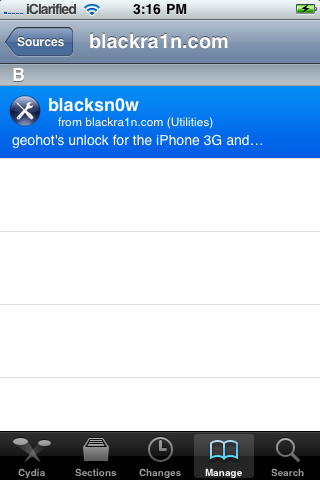
Step Eight Press to select blackra1n.com from the list of sources.
Step Nine Press to select blacksn0w from the list of packages.
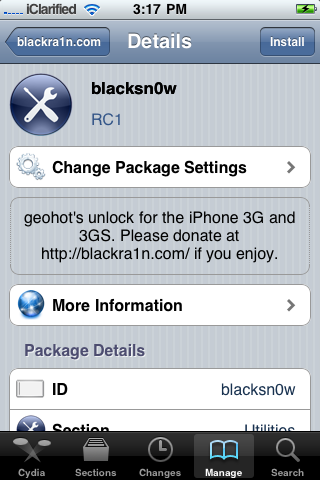
Step Ten Press the Install button at the top right of the screen.
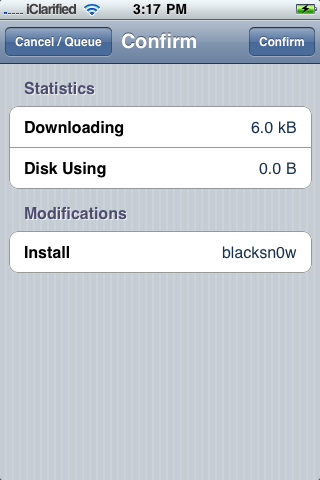
Step Eleven Press the Confirm button at the top right to begin installation.
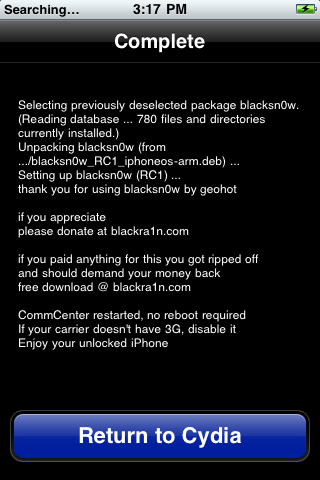
Step Twelve Once the unlock has been installed successfully press the large Return to Cydia button.
Step Thirteen Wait a few minutes for your CommCenter to restart and you will now be able to use the SIM card of your choice on your unlocked iPhone!
***THANKS: Congratulations and thanks to Geohot for making this unlock possible. You can donate towards his efforts at www.blackra1n.com.
Get the iClarified Daily Newsletter
Apple news, rumors, tutorials, price drop alerts, in your inbox every evening, free.
Unsubscribe at any time.
Success!
You have been subscribed.
Add Comment
Would you like to be notified when someone replies or adds a new comment?
Yes (All Threads)
Yes (This Thread Only)
No
Notifications
Would you like to be notified when we post a new Apple news article or tutorial?
Phone got stuck in boot mode,my phone is booting mode. IPhone 3g 4.1 Trying to do a restore now. From my experience don't try this!! please help me how to get out for this problem.
the package didnt even tell me that blacksnow is for 3.1.2 im on 5.1 and downloaded it. now my iPhone 3gs 8gb wont get past the apple logo, and when i went into redsnow i tried "just boot" and i tried "jailbreak and install cydia" neither one worked. so there should be specifications inside the package to let people know that if youre on 5.1 it will kill your phone.
Help needed: after running blackSn0w on 3GS 3.1.3 jailbroaken with blackra1n i've lost Wifi completely :( it's a known problem any idea what app combo to use instead to reset / re-jailbreak and re-unlock the most stable to day method ?
After running blackSn0w on 3GS 3.1.3 jailbroaken with blackra1n
i've lost Wifi completely :(
it's a known problem
any idea what app combo to use instead to reset / re-jailbreak and re-unlock?
Unfortunately for my iPhone 3G/3.1.3(7E18)/05.11.07/PwnageTool jailbreaked, w your Unlock Wizard (on iTunes 10.1.1) your "iPhone | How to Unlock the iPhone 3G, 3GS Using BlackSn0w" doesn't worked.
Now I have a continually restarting device that never ends starting on.
Can someone help me?, please!
Hey Eduardo! I have had the same problem after trying to unlock using the above method. Here is my iPhone data:
- iPhone Model: 3GS
- Firmware: 3.1.3 (7E18) (previous firmware was 3.1.2)
- Baseband: 05.11.07
- NEW bootrom. Serial number: 5K952...
- Jailbreaked using PwnageTool 3.1.5 (I followed iClarified wizard to select the jailbreaking method)
In order to successfully restore, follow these steps:
1. Turn off your iPhone by holding down both home and power buttons, because sometimes it doesn't shut down by pressing the power button only.
2. Once it is turned off, plug your USB cable into the iPhone connector ONLY.
3. Open up iTunes.
4. Plug your iPhone into your computer WHILE holding down the home button ONLY!
5. Keep holding it down for at least 1 minute (Sometimes it can take up to several minutes. Be patient!) until iTunes will pop up a message telling you it has found an iPhone in restore mode (THIS IS NOT THE SAME AS DFU MODE!).
6. Then restore it with your customized firmware.
...and Voilà! iPhone restored!
Now I have to look for an unlock method other than the one mentioned here.
After several hours searching on the web, It worked for me!
[Help] Have been using 3GS 3.1.3 jailbroaken with Blackr1n with no probs,
till I've desided to unlock it with Blacksn0w....
unlock went Fine - but Wi-Fi is broken ... network reset didnt't help :(
thanks in advance for ANY help
Attention: if you are on 3.1.3 and baseband 05.12.01 you must use ultrasn0w. Otherwise you will be stuck and have to restore your phone. BlackRa1n does not work with 05.12.01 (nor does BlackRa1n RC2)
Hi, my i phone is know stuck on the apple logo is there any way to fix it its a iphone 3gs 3.1.3 and when i try to restore i tunes doesnt let me also i do have the shsh when i jail broke it
could you please help
thanks
Hi. Start over from the top but use ultrasn0w instead of blacksn0w. Instead of typing blackra1n.com you type repo666.ultrasn0w.com. Worked on My phone wich also had froze...
Press and hold the powerbutton and the homebutton at the same time until it shuts off. Then you have to jailbreak your phone again using iclarifeds tutorial. Once your phone is jailbreaked you unlock your simcard using this guide...
Please help...
I have an jailbrocken, unlocked iphone 3g which i have been using for 2 yrs with t-Mobile usa.
Suddenly i lost Service. It says 'No Service' but wifi and others things works.
I tried to do a network reset, jailbroke again, unlocked again, toggled 3G, airplane mode...but still not working.
I tried to put in a AT&T sim and still stays no service. Can anyone please help me.
I am worried that it might be some hardware issue.
So I went through this tutorial. at the very end I clicked the return to Cydia button and the phone did so as it was suppose to and where the phone usually displays my provider it instead displayed "searching...". I waited a few minutes like the tutorial says to. After a few minutes had passed and nothing changed (still said "searching..."), I realized that the phone was frozen. I reboot the phone, the Apple logo displays, and it stays there and does nothing. I tried plugging into my PC to restore it but iTunes doesn't seem to recognize that its plugged in anymore. idk what I'm going to do with out my phone. Any help would be awesome. Thank you in advance.
I had problem like you described. Two days after the Apple logo displays on and off i gave up waiting for something to be happened. I took my iphone (OS 31.3, 05.12.01) to the repair shop. It costed £15 to reboot the phone. Now i still want to unlock it. My current network is O2. If you have successed in unlocking your OS 3.1.3, please let me know.
Exact same thing happened to me, except I didn't get that far back into Cydia. A bit worried, this isn't my phone, I was doing it for a friend. I can't even DFU now.
Any ideas?
Hi, I got the same problem. But when i used ultrasn0w instead of blacksn0w, it worked perfectly. Instead of typing blackra1n.com, type repo666.ultrasn0w.com. Worked like a charm for me!
thanks buddy! your one little post made my day. helping out a mate and blackra1n would not work, totaly froze the unit on startup. ultrasn0w did it perfectly, legend! cheers
Hi everyone... Okay so I have an iPhone 3GS with 05.11.07 baseband & 3.1.2. I unlocked it and have been using this phone in the Dominican Republic on CodaTel for 8 months without any problems. On Friday I lost service, rebooted the phone and it locked on the pineapple boot screen. I managed to get it restored with pwnagetool, restored the backup and got it all configured. I downloaded Blacksn0w and it locked up again. This site says 05.11.07 is a good firmware to use with Blacksn0w, but other forums say that it doesn't. Can anyone provide any insight on my problem... Please?
Here is what I would do in your case...Download the 3.1.2 firmware for your phone....restore using itunes to 3.1.2 (Hold the shift button and press the restore button in iTunes). DO NOT update to 3.1.3 any any cost!! Browse to the path where your 3.1.2 is saved. Once restored, use Spirit to jailbreak first. http://www.spritjb.com . and then from within Cedia use ultrasn0w to unlock the phone.
If you phone is working fine and is just lock avoid using the restore part in the instructions above and skip to the Spirit website for a jailbreak and unlock.
This does not work...I have done it twice now and each time it just searches and does nothing apart from grinding the OS to a halt when trying to navigate. I am on 3gs 3.1.3 and BB 5.11.07.
Alright, this issue occurs if your baseband becomes corrupt.
In order to fix this problem, you have to restore to the original 3.1.2 firmware (you can download the firmware from this link: https://www.iclarified.com/entry/index.php?enid=750).
Please don't create a custom restore ipsw - just restore from that file (this ensures that your baseband will be reinstalled too). After the restore you have to hacktivate your phone (use blackra1n) in order to re-restore to 3.1.3 (and this time u better use a custome ipsw ^^).
Hi guys!
This is a response to everyone who's on 3.1.3 and trying to unlock his 5.11.07 baseband.
There is a small bug in blacksn0w which dont makes geohots blaksn0w compatible to 3.1.3, BUT you're in luck:
Add this source (http://cydia.pushfix.info) and install blacksn0w rc2 in Cydia.
This blacksn0w version has been modified by msft.guy and is compatible to 3.1.3 and 3.1.2. It also fixes the wifi-issue (so use this one instead of the original blacksn0w)!
I tested it on 3.1.3 (3GS) AND IT WORKS! (note: ONLY if your baseband is still on version 5.11.07 and on 5.12.01!!!)
Enjoy it!
For details see: http://msftguy.blogspot.com/2010/03/fixing-blacksn0w-on-313.html
If you have baseband 5.11.07, you can unlock. The unlock for basband 5.12.01 will be released on June 7th 2010. Go to Settings --> General--> about and check.
Same problem, jailbreak with pwnage then no phone connection. then i used this blacksnow to unlock and now I'm stuck on the pwnage pineapple symbol. what can I do? Please help? I need my phone for important information i have on it... I have read the same complaint over ajnd over but no solution....
please help me get my iphone back on track
thanks
only thing you can do is restore in itunes (and you lose all data on iphone) (connect to your computer, hold home butt on iphone, open itunes, release home button, restore in itunes - or something like that, don't remember for sure, if this doesn't work check on net exact procedure
Help!!!! Hi folks, I had my iPhone 3G firmware 3.1.3 jail broken with Pwnage Tool, but for some reason I did not get connection to my cell phone provider, so I tried to unlock with blacksnow according to your instructions. For some reason in step 12 the phone got stuck and said "loading Cydia", but did not continue, so I left it alone and after a while it seemed to automatically reboot, but got stuck with the "pineapple" symbol. It does not continue to load and does not react to any button anymore. I can reboot with the same result holding on/off and home buttons, but nothing else. When I connect it to the computer iTunes does not recognize the phone and the phone does not react being connected in any way. Help! What went wrong and more important: How can I fix it? please Helppp Best regards,
I figured it out. You need to go into recovery mode (not DFU) and restore the iphone (using the jailbreak firmware) with itunes. Google and you shall receive.
Help!!!! Hi folks, I had my iPhone 3G firmware 3.1.3 jail broken with Pwnage Tool, but for some reason I did not get connection to my cell phone provider, so I tried to unlock with blacksnow according to your instructions. For some reason in step 12 the phone got stuck and said "loading Cydia", but did not continue, so I left it alone and after a while it seemed to automatically reboot, but got stuck with the "pineapple" symbol. It does not continue to load and does not react to any button anymore. I can reboot with the same result holding on/off and home buttons, but nothing else. When I connect it to the computer iTunes does not recognize the phone and the phone does not react being connected in any way. Help! What went wrong and more important: How can I fix it?
please Helppp
Best regards,





![Apple Releases Xcode 27.1 Beta With iPhone Duo SDKs and Simulator [Download]](/images/news/102276/102276/102276-160.jpg "Apple Releases Xcode 27.1 Beta With iPhone Duo SDKs and Simulator [Download]")
![Apple Shares 'new trick' Shot on iPhone 18 Pro Ad Featuring ROSÉ [Video]](/images/news/102273/102273/102273-160.jpg "Apple Shares 'new trick' Shot on iPhone 18 Pro Ad Featuring ROSÉ [Video]")
![iPhone 18 Pro Teardown Shows Under-Display Face ID Camera and Larger Vapor Chamber [Video]](/images/news/102270/102270/102270-160.jpg "iPhone 18 Pro Teardown Shows Under-Display Face ID Camera and Larger Vapor Chamber [Video]")










![Apple Studio Display XDR Hits All-Time Low of $2,969.99 ($329 Off) [Deal]](/images/news/101976/101976/101976-160.jpg "Apple Studio Display XDR Hits All-Time Low of $2,969.99 ($329 Off) [Deal]")
