These are instructions on how to unlock the iPhone 4, iPhone 3GS, and iPhone 3G for use with any GSM cellphone carrier using UltraSn0w. This will work with the iOS 4.2.1 firmware if you are on the 06.15.00 baseband.
Before you can follow these instructions you must have a jailbroken iPhone and you must be on the 04.26.08, 05.11.07, 05.12.01, 05.13.04, 06.15.00, or 01.59 baseband(modem firmware).
To find your firmware and modem firmware(baseband) versions you can follow this tutorial.
If you are on T-Mobile remember to turn off 3G before starting...
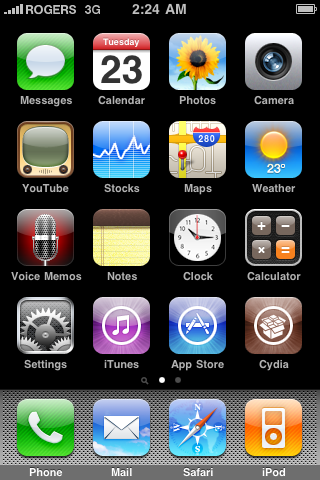
Step One Press to launch Cydia Installer from your SpringBoard.
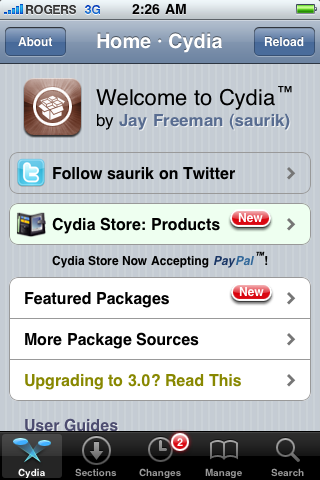
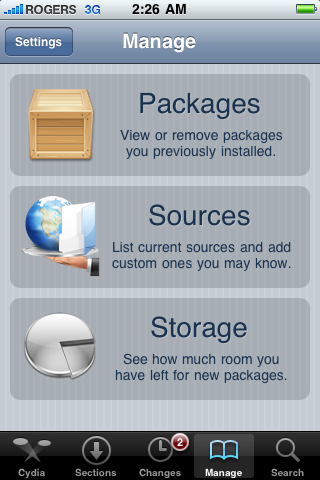
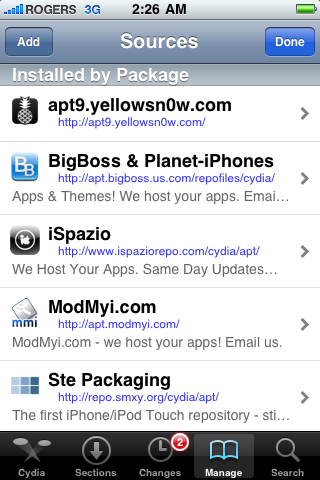
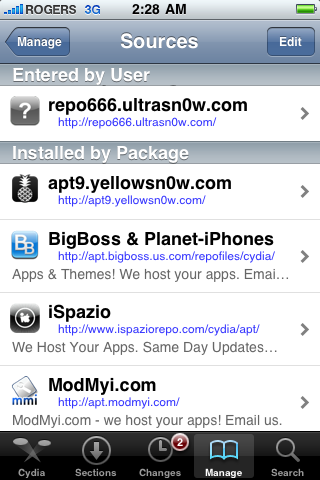
Step Two Press to select the Manage tab at the bottom of the screen.
Step Three Press to select the large Sources button
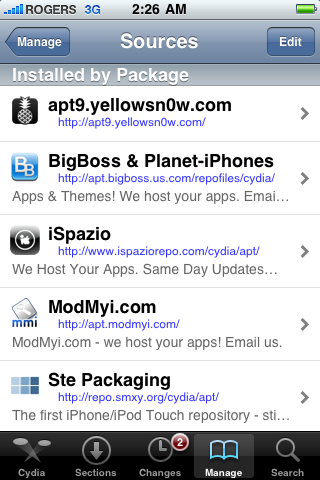
Step Four If the ultrasn0w repo is not present press the Edit button at the top right of the screen. Otherwise, skip to Step Nine.
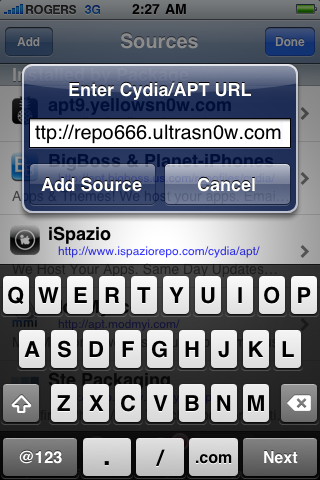
Step Five Press the Add button at the top left of the screen.
Step Six Enter http://repo666.ultrasn0w.com/ as the source url and press the Add Source button.
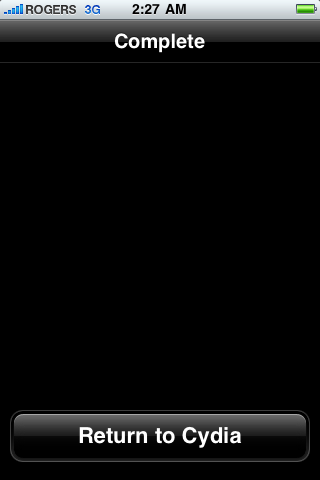
Step Seven Once the source has been added press the large Return to Cydia button.
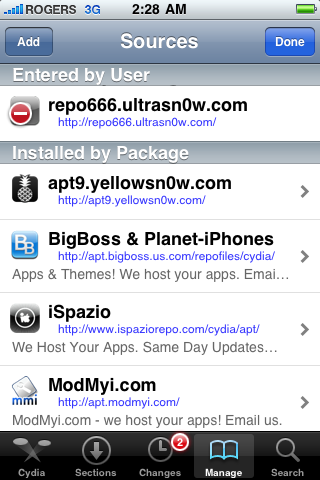
Step Eight Press the Done button at the top right of the screen.
Step Nine Press to select repo666.ultrasn0w.com from the list of user entered sources.
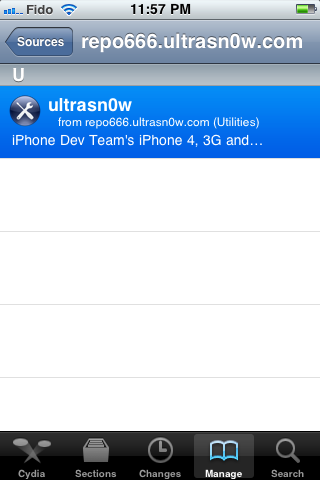
Step Ten Press to select ultrasn0w from the list of packages
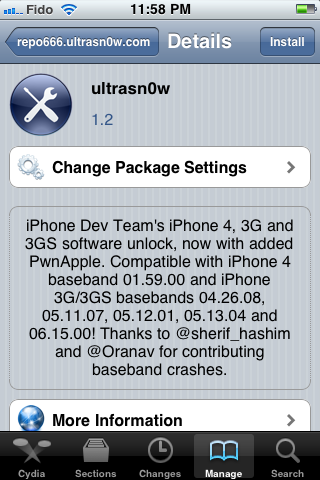
Step Eleven Press the Install button at the top right of the screen.
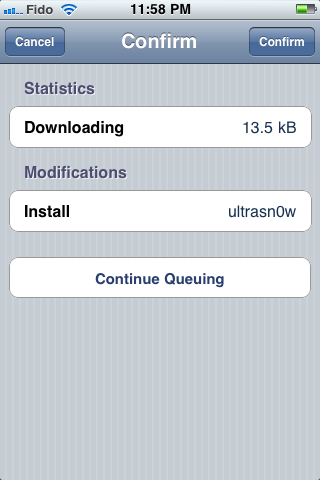
Step Twelve Press the Confirm button at the top right of the screen.
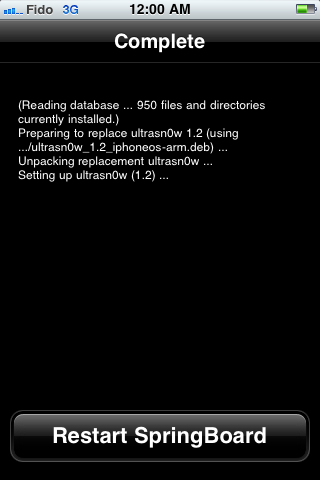
Step Thirteen After installation completes successfully press the large Restart Springboard button.
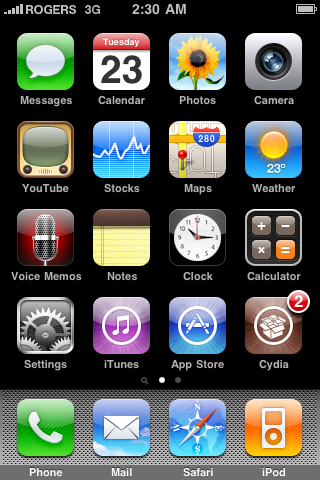
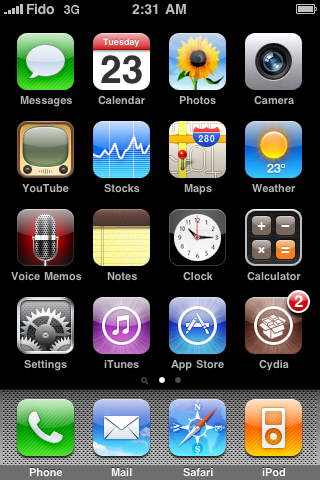
Step Fourteen You should now be able to insert the SIM of your choice!
***THANKS: A big thank you to all the members of the iPhone Dev-Team for all their hard work! It is much appreciated by all.
Get the iClarified Daily Newsletter
Apple news, rumors, tutorials, price drop alerts, in your inbox every evening, free.
Unsubscribe at any time.
Success!
You have been subscribed.
Add Comment
Would you like to be notified when someone replies or adds a new comment?
Yes (All Threads)
Yes (This Thread Only)
No
Notifications
Would you like to be notified when we post a new Apple news article or tutorial?
I finally made it on an iPhone 3G, 4.2.1, 5.15.04!!! Thanx for the tutorials, although they contain only bits of information, and if you get stuck anywhere you'll have to google further.
To succeed, I used redsn0w v. 0.9.14b2, not the latest one (the latest one will give you faulty baseband after downgrade with no wi-fi, bluetooth or IMEI, and you will have to start all over again).
After upgrading the baseband to 6.15.00, I got stuck on apple logo (bricked phone). To bypass this, you need to download, and Select IPSW iOS 4.1 (not 4.2.1), and use "Just boot" option. After the phone boots, it will be buggy (the screen), but it will become alive again. Check if the baseband is 6.15.00. If yes, proceed to Jailbreak in redsn0w (this time using 4.2.1 IPSW), and tick the boxes Install Cydia, and Downgrade baseband. After it is done, you will have an iPhone with baseband 5.13.04, which you can unlock with ultrasn0w, but (most probably) with "No service" bug. To resolve this, follow the tutorial concerning this matter, and voila!
iPhone unlocked.
This procedure felt like walking through thick bushes...
I can't seem to figure out how to unlock my phone.
I have 3gs with 6.1.6
modern firmware 5.16.08
I have jailbreak with redsn0w
Installed Ultrasn0w
I am stuck on "No service"
Ive tried so many things I cant figure it out.
uninstall ultrasn0w, use redsn0w to downgrade from ipad baseband, that should bring you to baseband 5.13.0 or something like that, then install ultrasn0w again, good luck
That worked for me on 3GS 6.1.6. From the beginning if I remember correctly,
1. redsn0w: uncheck Cydia and everything else, check upgrade to ipad baseband
2. Repeat redsn0w, this time with: check Cydia, check downgrade baseband. Now you have tethered boot
3. In redsn0w: Just boot
3. From Cydia, install p0sixspwn. This makes it untethered boot.
4. From Cydia, add the ultrasn0w repository and then install ultrasn0w. Voila! Service!
For me the key step was to start over, then upgrade baseband first and then downgrade baseband. Finally recognized T-mobile sim.
Just did the jailbreak on my 3G using the iClarified instructions, and included the iPad baseband when I did it. Worked fine, now jailbroken, and shows 06.15.00... but, when I try to run the above, when I click to install Ultrasn0w, I get "the requested modifications cannot be applied due to...' :S
I have an iPhone 4s with iOS 7.0.4, I cannot down grade to 6.x or 5.x. After I tried the steps suggested, it comes with a message "SIM Not Valid".
Anyone suggestion, ot it just doesn't work for 7.0.4?
Thanks.
Joseph
Hi all! I've just jailbreaked my iphone and now tried to unlock it because I changed carrier... now, it keeps searching for the carrier and I cannot make any calls... any suggestion? I'm a bit "fresh" on this kind of matters. Thanks all
Worked at last. Thanks guys. Downgrading my baseband from 6.15 to 5.13.04 did the trick. I have 3Gs and updated it to 6.1.3. with iTunes, JB with redsnow, install Cydia, Ultrasnow, then p0sixspwn for untethered JB. Found everything OK, except it was still SIM locked. Did the baseband downgrade with Redsnow and right away I could call out. Thanks again.
i have a second hand iphone 3gs with ios 4.1.1,bt whenever i try to update it to ios 6.1.3,the iphone gets locked...its annoying as i cannot use any apps...please tell me what to do..... thankyou








![How To Turn Off iPhone [Video]](/images/tutorials/94999/94999/94999-160.jpg "How To Turn Off iPhone [Video]")
![How To Back Up Your iPhone to an External Drive on Mac [Video]](/images/tutorials/72786/72786/72786-160.jpg "How To Back Up Your iPhone to an External Drive on Mac [Video]")

![How To Find Your IP Address on iPhone [Video]](/images/tutorials/496/496/496-160.jpg "How To Find Your IP Address on iPhone [Video]")
![Beats Headphones, Earbuds, and Pill Speaker Are Up to 41% Off [Deal]](/images/news/103026/103026/103026-160.jpg "Beats Headphones, Earbuds, and Pill Speaker Are Up to 41% Off [Deal]")
![New Fire TV Stick 4K Drops to $29.99 (50% Off) [Deal]](/images/news/102984/102984/102984-160.jpg "New Fire TV Stick 4K Drops to $29.99 (50% Off) [Deal]")
![Apple's iPhone 18 Pro and Pro Max Cases Are Up to 37% Off [Deal]](/images/news/102978/102978/102978-160.jpg "Apple's iPhone 18 Pro and Pro Max Cases Are Up to 37% Off [Deal]")
