These are instructions on how to find your iPhone Bootloader version using BBUpdaterExtreme and Windows. You can use these instructions to determine if an unlock is possible on an accidentally upgraded iPhone 3G. Currently only iPhones with bootloader 5.08 will be able to downgrade their baseband for the unlock.
Before you begin please have MobileTerminal and OpenSSH installed from Cydia. You can find MobileTerminal in the Terminal Support section of Cydia. For instructions on how to install an application from Cydia you can use this tutorial.
You will also need WinSCP installed you can find it here
Step One Download BBUpdaterExtreme from here and save it to your desktop.
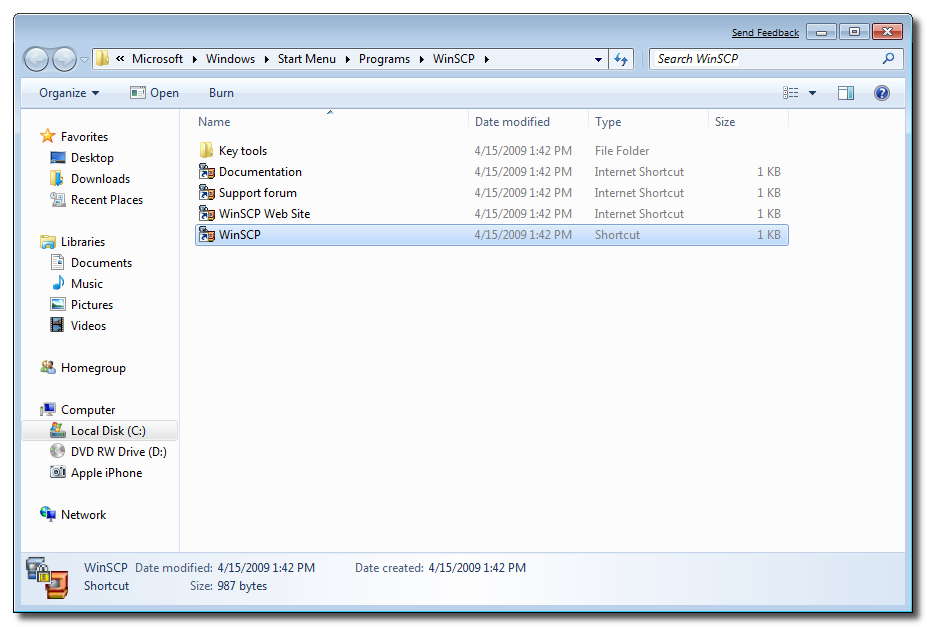
Step Two Launch the WinSCP application from your Start Menu programs.
Step Three Make sure you iPhone is connected to the same wireless network as your computer and determine its IP Address using these instructions.
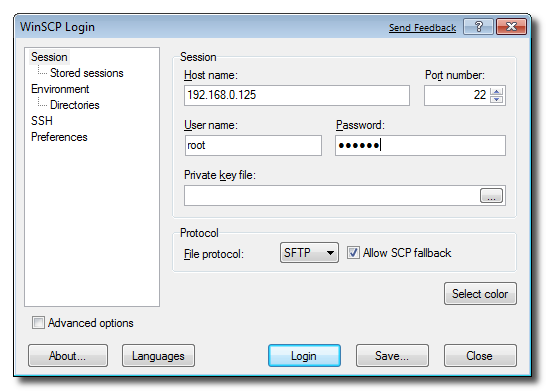
Step Four WinSCP will ask you to input your login information. Enter the IP Address you just retrieved in Step Three as the Host Name, root as the username and alpine as the password. Click the Login button to continue.
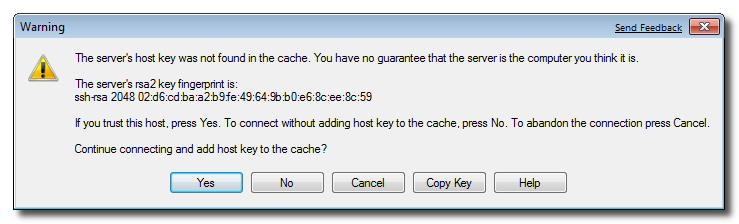
If prompted to add the host key to the cache click the Yes button.
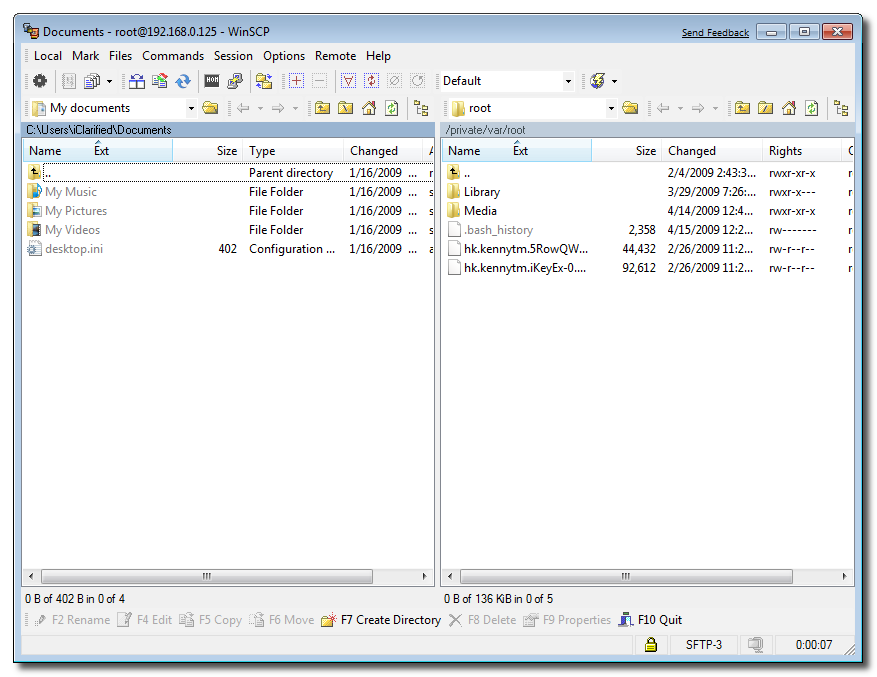
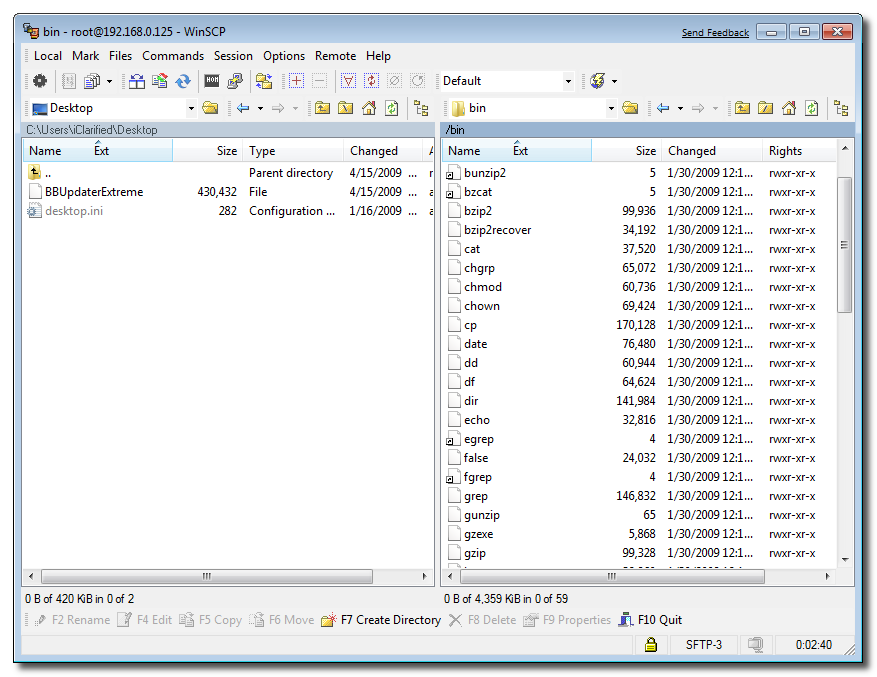
Step Five WinSCP will now display two file trees. The one on the left is your local computer and the one on the right is your iPhone.
Navigate to your desktop using the left file tree and navigate to the /bin directory using the right file tree.
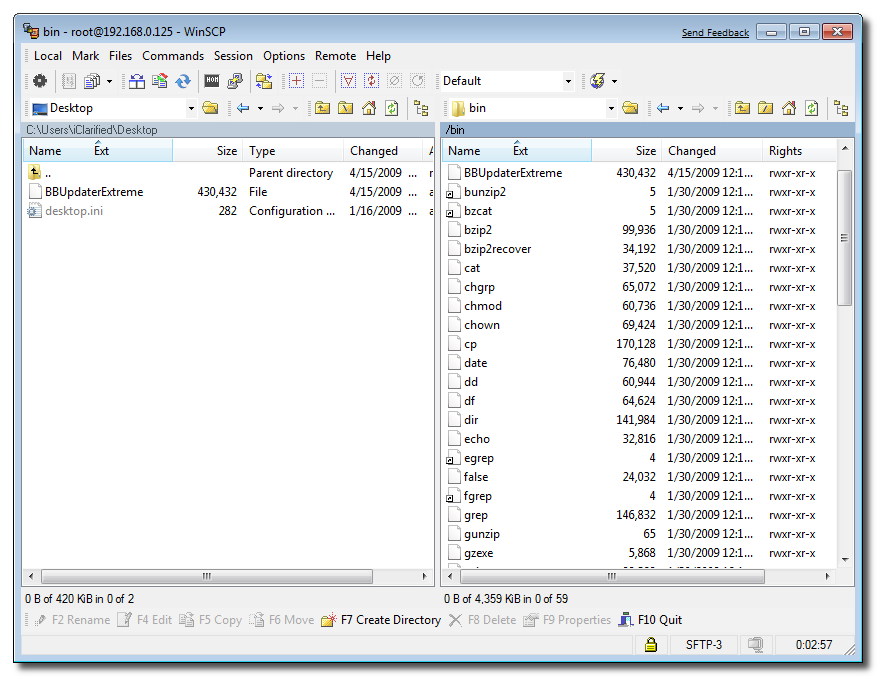
Step Six Drag the BBUpdateExtreme file from the left panel to the right panel.
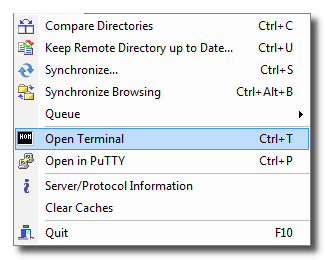
Step Seven Select Open Terminal from the Commands menu.
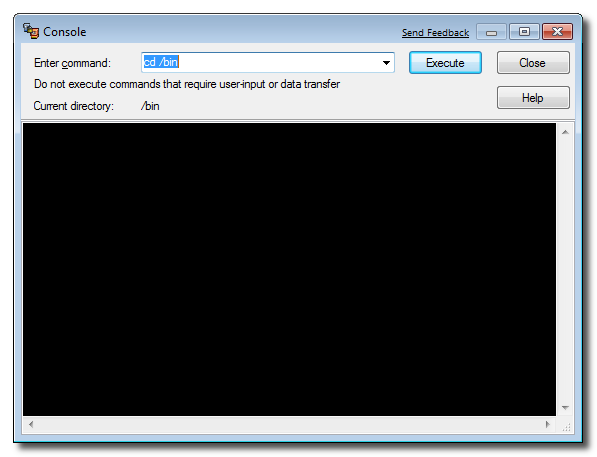
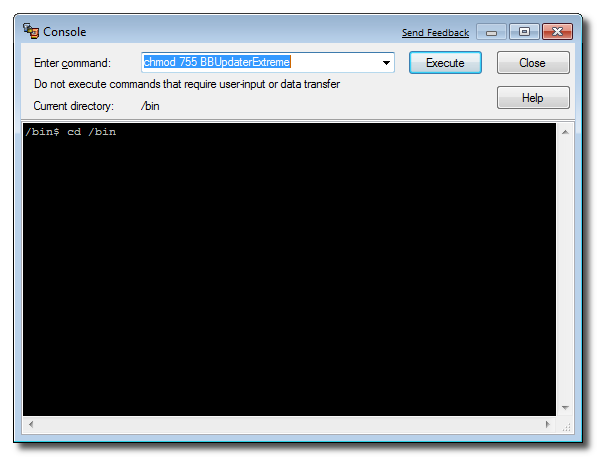
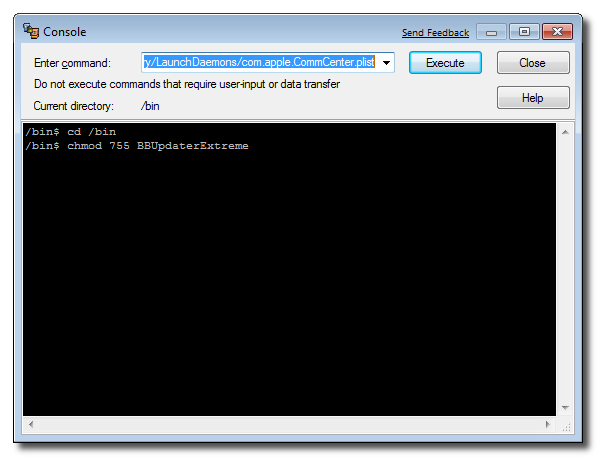
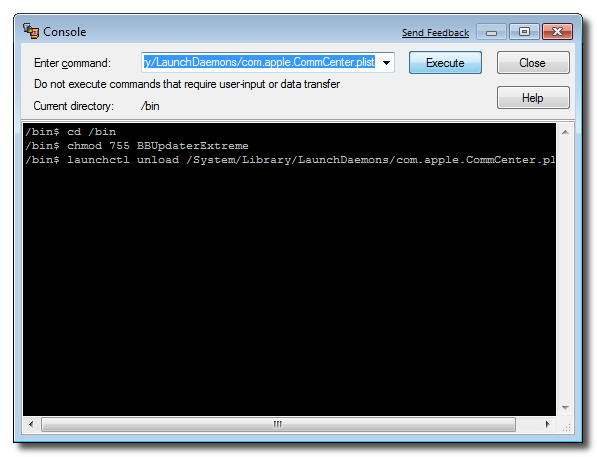
Step Eight Input the following commands into the Terminal window and click the Execute button after each.
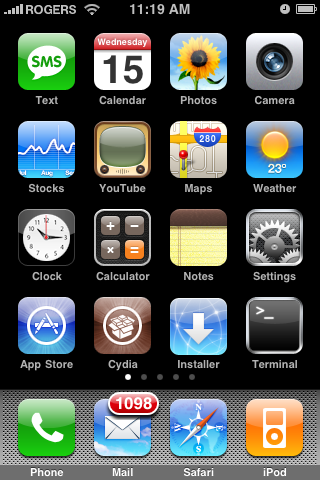
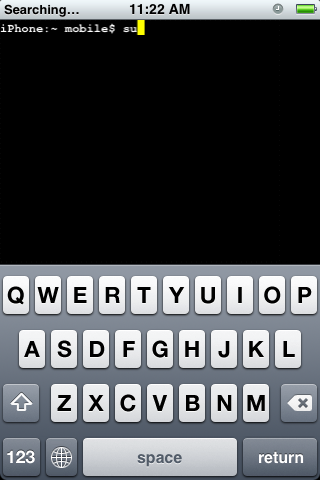
Step Nine Your iPhone will now loose its network connections. Launch Mobile Terminal from the iPhone SpringBoard.
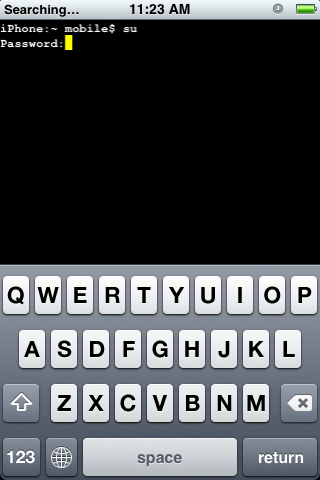
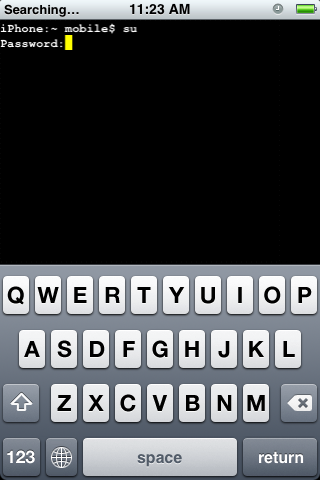
Step Ten Type su into the terminal window. When asked for a password input alpine as the password.
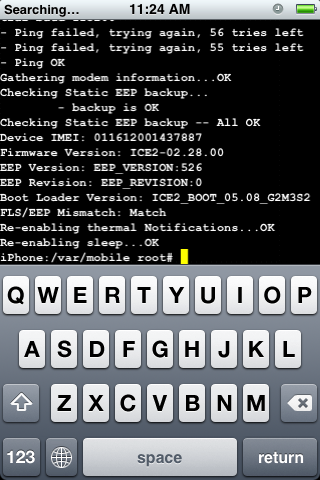
Step Eleven Now input BBUpdaterExtreme queryversion to get the bootloader version of your iPhone. It will look something like Boot Loader Version: ICE2_BOOT_05.08_G2M3S2
NOTES: You will need to restart your iPhone to regain network connectivity. You could also type launchctl load /System/Library/LaunchDaemons/com.apple.CommCenter.plist into the terminal window.
Get the iClarified Daily Newsletter
Apple news, rumors, tutorials, price drop alerts, in your inbox every evening, free.
Unsubscribe at any time.
Success!
You have been subscribed.
Add Comment
Would you like to be notified when someone replies or adds a new comment?
Yes (All Threads)
Yes (This Thread Only)
No
Notifications
Would you like to be notified when we post a new Apple news article or tutorial?
I am unable to connect to my Iphone using WinSCP. I get a message repeatedly that access is denied. Is it possible that the username and password on the phone is not "root" and "alpine"? I am not the original owner of the phone but was curious why I can't remote access into the phone. I was able to do this with several other Iphones so I know it's not my laptop or router causing the problem. Any suggestions/ideas??
i ve the same prob mate i entered the same username n password as bove it doesnt login neways if u do find a way to login lemme knwo as w7ell ill b waitin
i am stuck on step eleve!! when i input the comand bbupdaterextreme queryversion i get UNKNOWN COMMAND error...any ideas???i want 2 unlock my iphone cause i am sick of this turbo sim
Install fuzzyband app from cydia under system apps, it's a easy way to downgrade. If your bootloader is higher, it will let you know exectly what it is. Unfortunately mine is 06.02 so waiting on dev team for solution.
hi guys, i get error massage in step 8 , cd/bin any idea ,?
i have to mention that modem firmware of my iphone is 02.30.03, is it the reason i cant complete the steps?
Thank u.
I didn't have wifi so I couldn't use WinScp.Heres what did. I put the file in the directory using ifunbox then I changed the permissions in mobileTerminal did everything else in there and it worked.Sadly mines 5.09. Thanks for the guide.
You can use chmod in MobileTerminal to change the permissions of the directory the file is in or use something like Boss Prefs(not recommended) search for the command but remember to change it back when you are done.
Unfortunately, I've spent over 5 hours going to every forum and website to find a solution, but sadly there is no hope for 5.09 holders at this moment.
You can only downgrade your Modem Firmware if you have boot loader 5.08 and no people there is NO way to downgrade your boot loader from 5.09 or 6.02 to 5.08.
I'm hoping that the iPhone Dev Team will work on this issue and try to fix it as soon as possible, because we'll not be able to use our iphones otherwise.
I used this manual to search the version of the bootloader ( 5.09). Now my iphone resets automaticly every 3 or 4 minutes. I did already a restore but it stays with this problem. Is there somebody who can help me please
I have some problem when connecting iPhone with my computer. after typing ip address, username and password, i click on yes but there is still another step that asked me password again. i type alpine but i didn't work. how should i do? Please help me!
Damn that thing helped to check your bootloader... easy way... but I found my bootloader version is 6.02. Can't do anything, just waiting for the Dev Team?
After confirming to proceed in the mobile termining, the process starts but the wifi signal disappears and the process starts timing out, and makes about 10 attampts to boot before shitting down the phone.
Question
Could this be a problem with the phones bootloader or is the bandwidth of my wifi network too small and hence the time outs. Please help, my iPhone has been a vegitative comma for over three months, and this is my last hope to bring her back to life.
I checked my BL Version..turned out to be 5.09!! My Iphone is currently on 2.2 and Mdoem Firmware is 2.30.03. Can someone please guide me, how i can unlock my phone...Please am desperate!!
you have to have the programs it says in the beginning. BUT if you do then it may be your router. I have AT&T 2WIRE and I had to go in HomePortal and under firewall setting and advanced setting unclick (Stealth Mode, Block Ping, Strict UDP Session Control) and on OutBound Control click (all boxes including "All Other Protocols"). This was the only way to keep it from timing out.
I got screwed. bought mine off ebay and did not know the bootloader was 5.9.
Guess i am waiting. Back to the HTC Dash.



![Apple Releases macOS 27.2 Golden Gate Beta to Developers [Download]](/images/news/102249/102249/102249-160.jpg "Apple Releases macOS 27.2 Golden Gate Beta to Developers [Download]")
![Apple Seeds First Betas of watchOS 27.2, tvOS 27.2, and visionOS 27.2 to Developers [Download]](/images/news/102252/102252/102252-160.jpg "Apple Seeds First Betas of watchOS 27.2, tvOS 27.2, and visionOS 27.2 to Developers [Download]")
![Apple Releases iOS 27.2 Beta and iPadOS 27.2 Beta to Developers [Download]](/images/news/102248/102248/102248-160.jpg "Apple Releases iOS 27.2 Beta and iPadOS 27.2 Beta to Developers [Download]")











![Apple Studio Display XDR Hits All-Time Low of $2,969.99 ($329 Off) [Deal]](/images/news/101976/101976/101976-160.jpg "Apple Studio Display XDR Hits All-Time Low of $2,969.99 ($329 Off) [Deal]")
