These are instructions on how to create a bootable OS X Mountain Lion USB key.
Step One Connect a 8GB or larger USB key to your computer.
Step Two On a Mac that can run OS X Mountain Lion, open Apple's How to download and install macOS page in Safari and click Mountain Lion 10.8 under 'Download via web browser'. The InstallMacOSX.dmg disk image downloads to your Downloads folder. Apple no longer sells OS X Mountain Lion in the Mac App Store; this download is free.
Step Three Double-click InstallMacOSX.dmg to open it, then double-click InstallMacOSX.pkg and follow the onscreen instructions. This puts the Install OS X Mountain Lion app in your Applications folder. If the Mac isn't compatible with OS X Mountain Lion, the package won't complete.
**If you'd rather install OS X Mountain Lion on this Mac, follow these instructions.
Step Four If the installer opens, choose Quit Install OS X Mountain Lion from the Install OS X Mountain Lion menu to exit it.
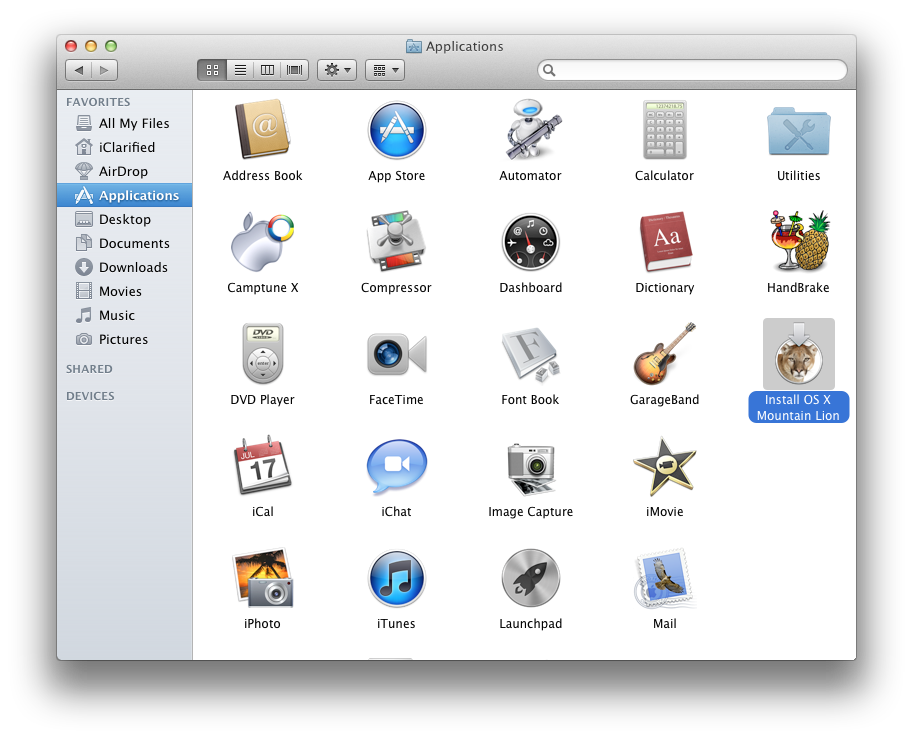
Step Five Click to launch a new Finder window from your dock.
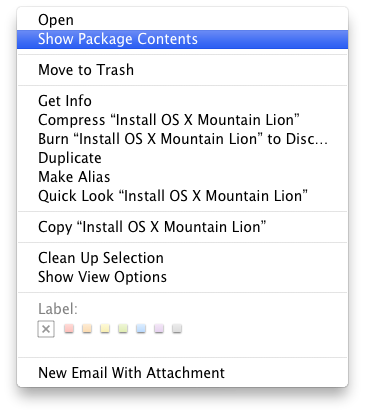
Step Six Navigate to the Applications folder and right click the new "Install OS X Mountain Lion" icon then select Show Package Contents from the contextual menu.
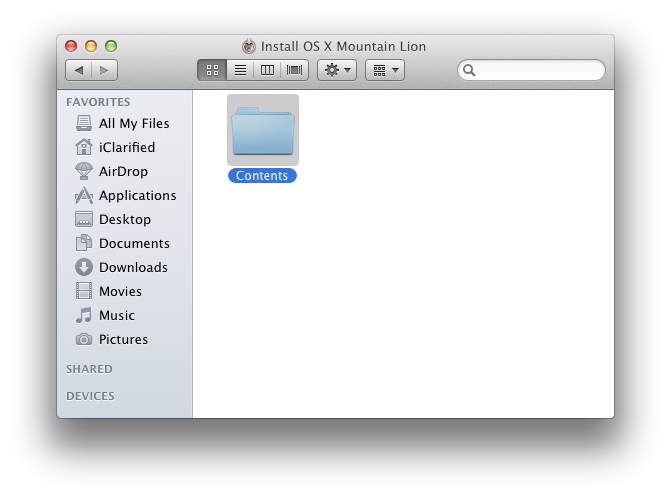
Step Seven Double click the Contents folder.
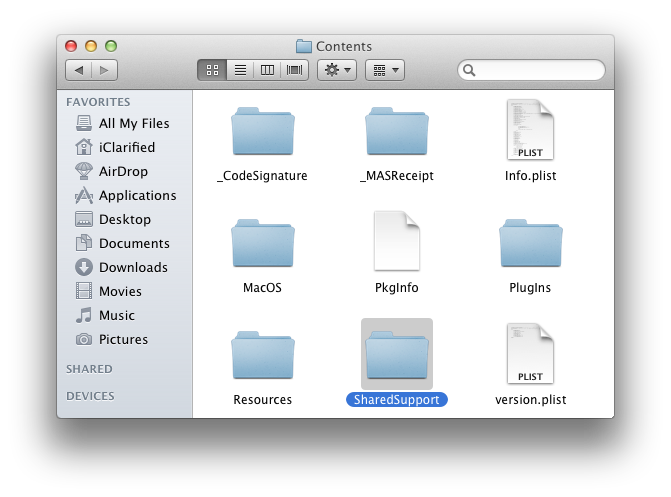
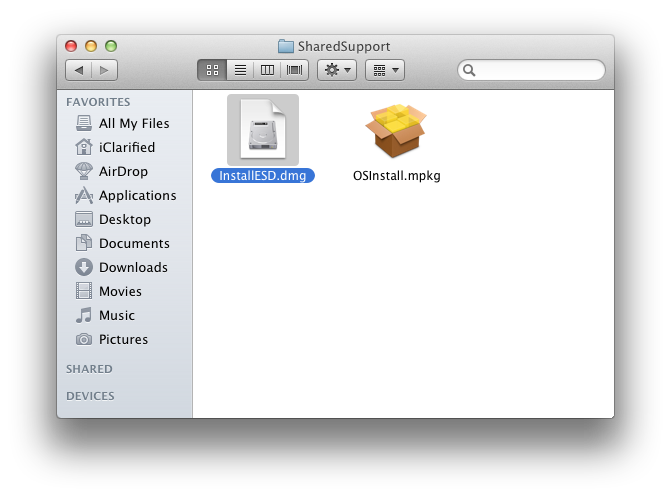
Step Eight Then double click the SharedSupport folder
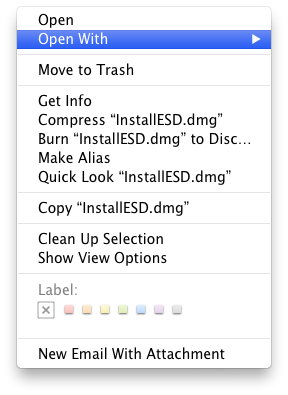
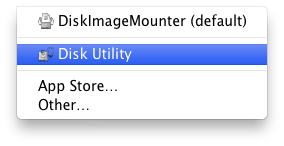
Step Nine Right click or 'Control' click InstallESD.dmg and select Disk Utility from the Open With menu.
On OS X El Capitan or later, Disk Utility has no Partition or Restore tabs. Select the USB drive, click Erase, name it 'MOUNTAINLION', choose Mac OS Extended (Journaled) and GUID Partition Map, then click Erase. Then select the new volume, choose Edit > Restore, click Image, pick the InstallESD.dmg file and click Restore.
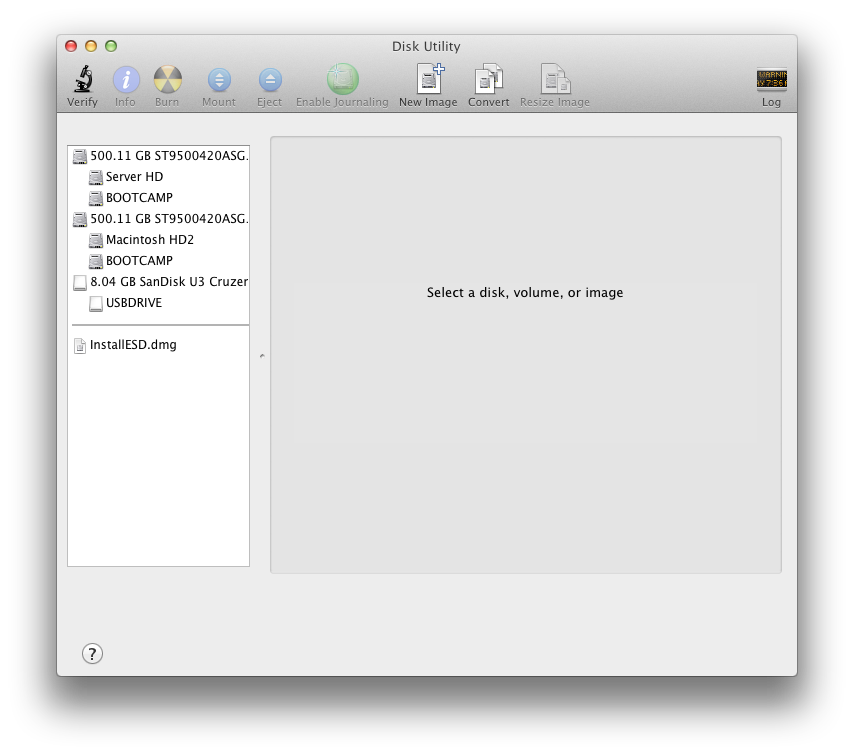
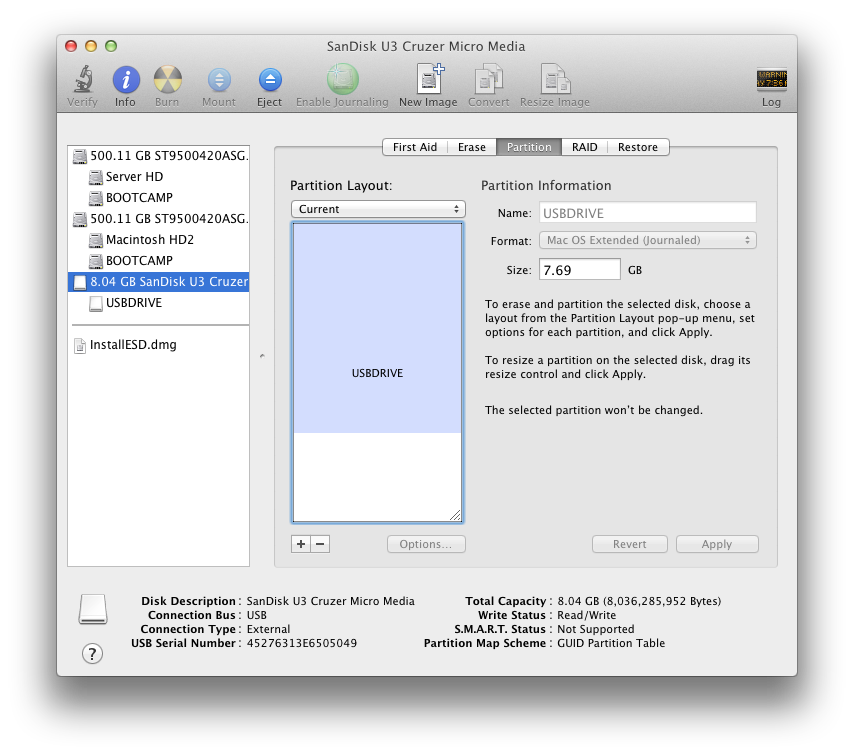
Step Ten Select your USB thumb drive from the list on the left and click the Partition tab.
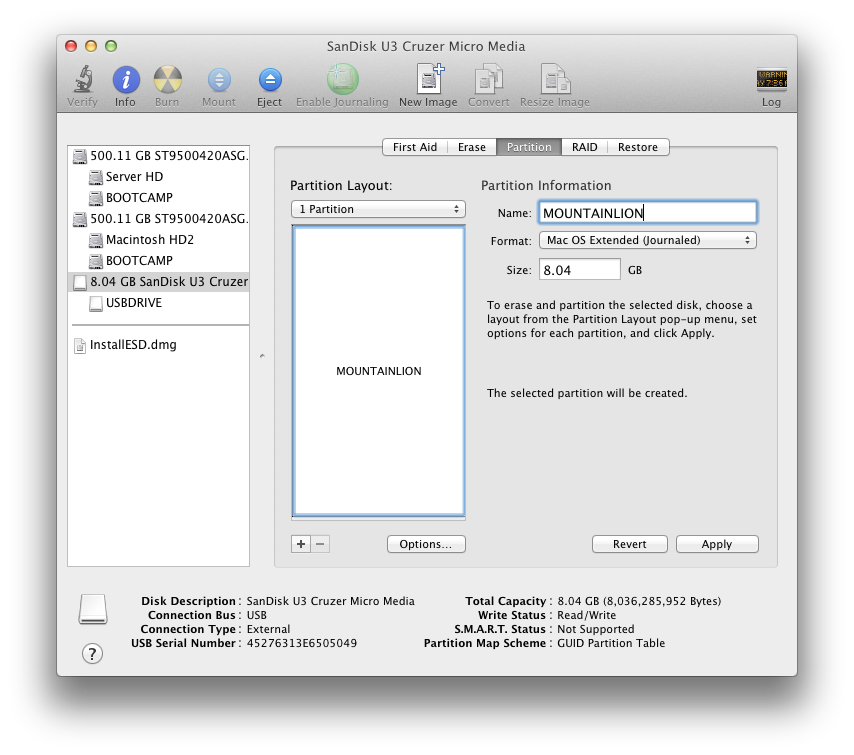
Step Eleven Set the Partition Layout to 1 Partition, set the Name to 'MOUNTAINLION', set the Format to Mac OS Extended (Journaled), and then click the Options button.
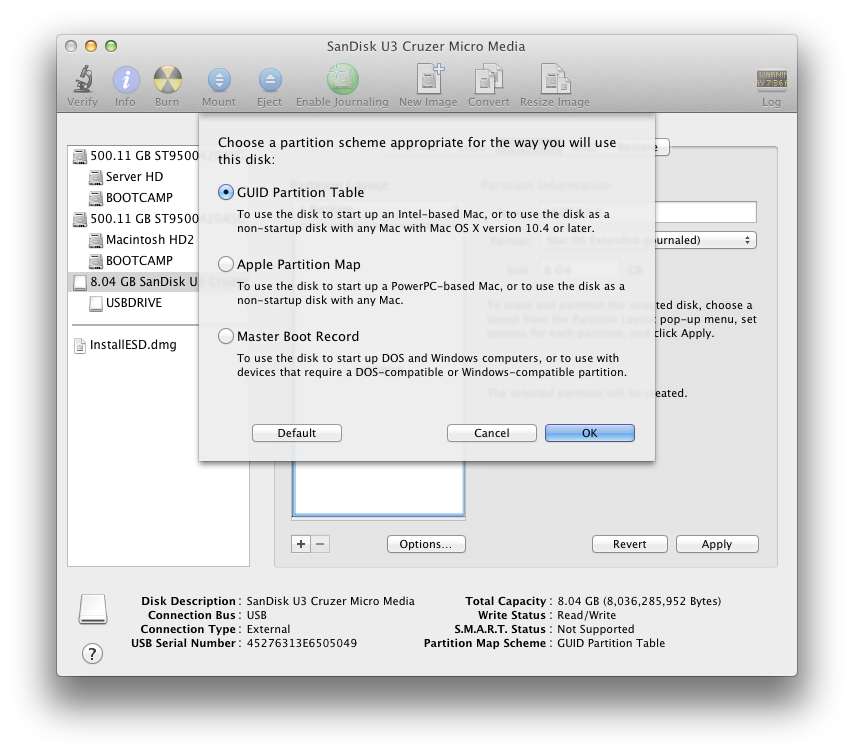
Step Twelve Choose GUID Partition Table from the popup window then click the OK button.
Step Thirteen Next click the Apply button to save your changes.
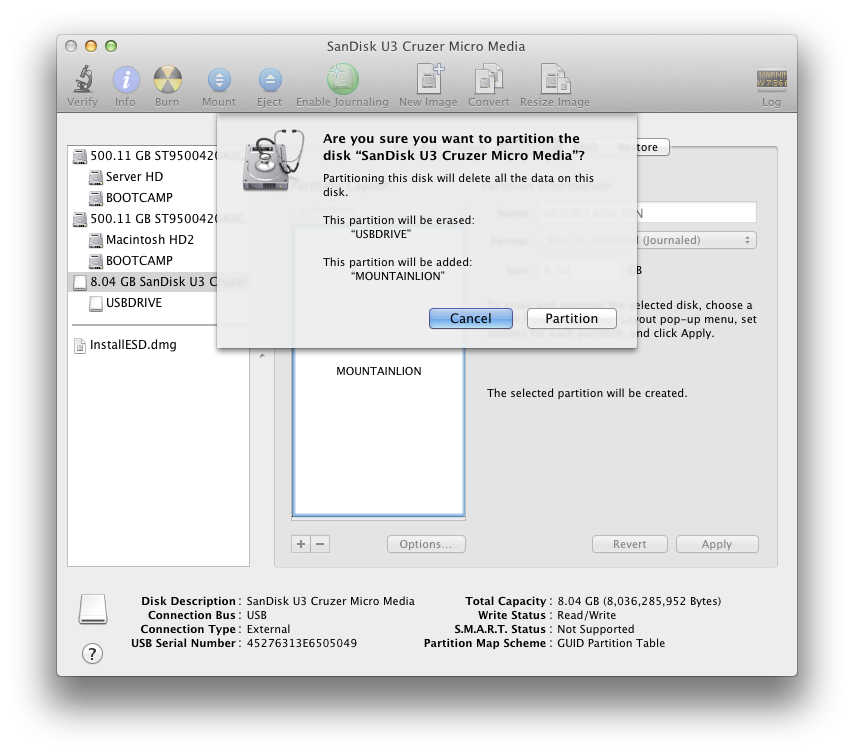
When asked to confirm click the Partition button.
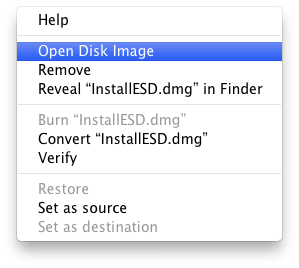
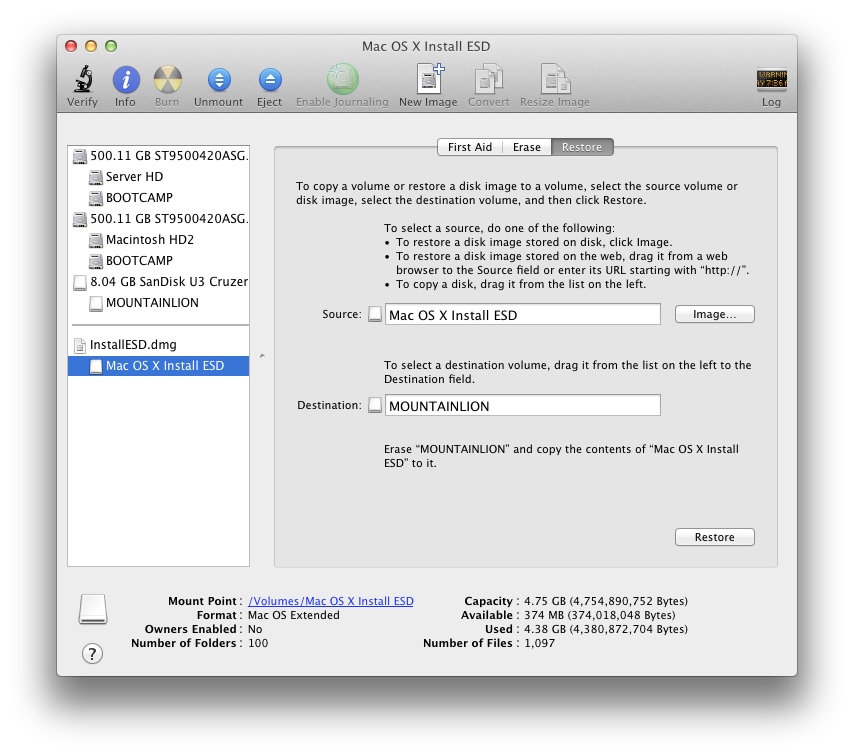
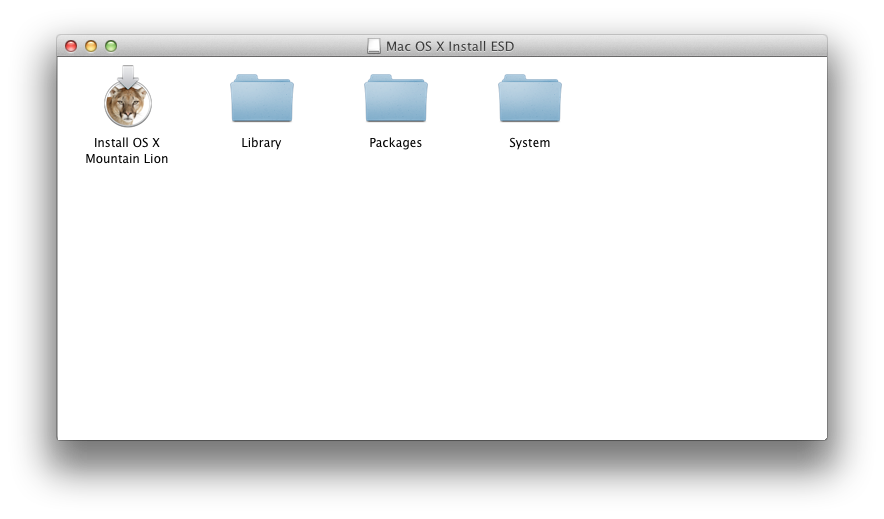
Step Fourteen Right click or control-click the InstallESD.dmg image from the left side of Disk Utility and choose Open Disk Image from the popup. Select the new Mac OS X Install ESD partition that appears then click the Restore tab.
Step Fifteen Make sure the Mac OS X Install ESD is set as the Source then drag the MOUNTAINLION partition from the list on the left into the Destination field.
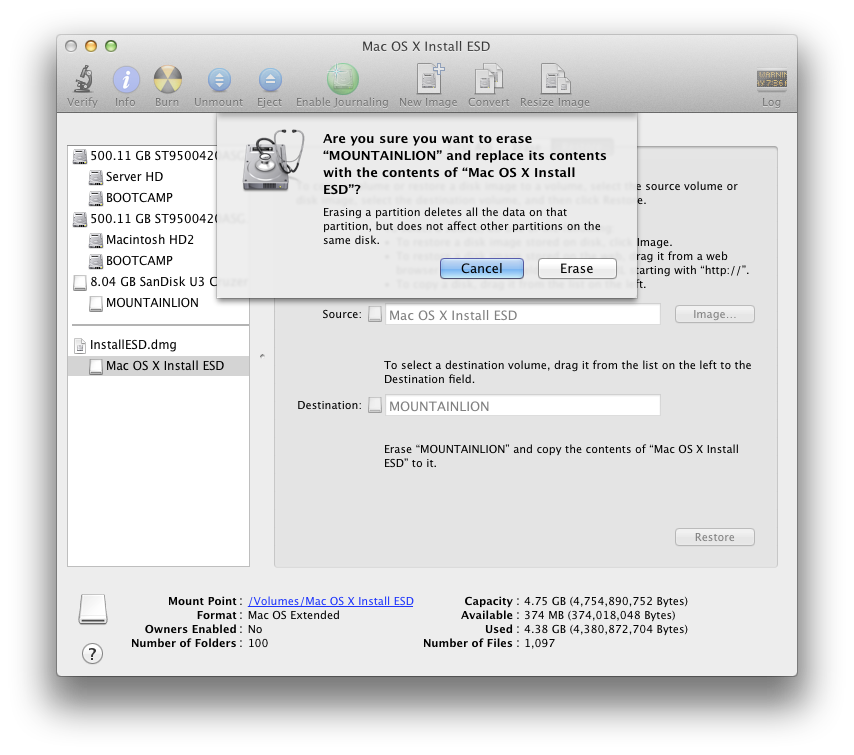
Step Sixteen Click the Restore button then click the Erase button from the confirmation popup to begin building your install key.
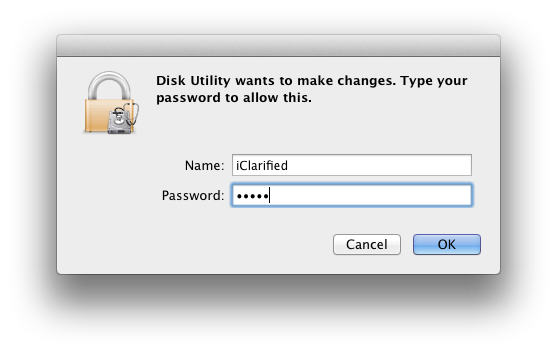
Another popup will appear asking you to log in. Enter your administrative username and password then click OK.
Step Seventeen When the restore is complete the OS X Mountain Lion USB Install Key will be mounted and it will be ready to use.
Get the iClarified Daily Newsletter
Apple news, rumors, tutorials, price drop alerts, in your inbox every evening, free.
Unsubscribe at any time.
Success!
You have been subscribed.
Add Comment
Would you like to be notified when someone replies or adds a new comment?
Yes (All Threads)
Yes (This Thread Only)
No
Notifications
Would you like to be notified when we post a new Apple news article or tutorial?
I read the whole article but, could someone tell me what is the purpose of creating this Bootable USB? I am waiting for apple to send me my code for the upgrade and would like to know what is this about before I upgrade my OS. Thanks in advance!
Having a USB installer is useful for several reasons. Two that come immediately to mind are: 1) It allows you to install Mountain Lion on a computer that is not connected to the internet. 2) It allows you to install or reinstall Mountain Lion on one or more computers, without having to re-download the entire multi-gigabyte image file each time, and for each computer.
Everything went just like described, but when I reboot from the Bootable disk, to do a clean install of Mountain Lion, I get a message saying |There was a problem installing "Mac OS X". Try reinstalling.| Did anyone encounter the same problem and does someone have a solution? Thanks. Gr, Gio
Sorry but my question isn´t about this topic.
Someone know if was fixed the issue when using fullscreen apps on dual displays?
I going to buy another display for my Mac but on Lion we can´t use an app in fullscreen mode and get the another display free for use.




![Apple Releases iOS 27.2 RC and iPadOS 27.2 RC to Developers [Download]](/images/news/102906/102906/102906-160.jpg "Apple Releases iOS 27.2 RC and iPadOS 27.2 RC to Developers [Download]")
![Apple Releases macOS 27.2 Golden Gate RC to Developers [Download]](/images/news/102909/102909/102909-160.jpg "Apple Releases macOS 27.2 Golden Gate RC to Developers [Download]")
![Apple Seeds watchOS 27.2, tvOS 27.2, and visionOS 27.2 Release Candidates [Download]](/images/news/102912/102912/102912-160.jpg "Apple Seeds watchOS 27.2, tvOS 27.2, and visionOS 27.2 Release Candidates [Download]")
![Apple Announces 'Pro and Tell' Event for October 28 [Video]](/images/news/102903/102903/102903-160.jpg "Apple Announces 'Pro and Tell' Event for October 28 [Video]")

![How To Back Up Your iPhone to an External Drive on Mac [Video]](/images/tutorials/72786/72786/72786-160.jpg "How To Back Up Your iPhone to an External Drive on Mac [Video]")
![How To Find Your IP Address on iPhone [Video]](/images/tutorials/496/496/496-160.jpg "How To Find Your IP Address on iPhone [Video]")
![16-Inch MacBook Pro With M5 Max Drops to $3,499 ($900 Off), Lowest Price We've Seen [Deal]](/images/news/102900/102900/102900-160.jpg "16-Inch MacBook Pro With M5 Max Drops to $3,499 ($900 Off), Lowest Price We've Seen [Deal]")
![Mac Studio With M5 Max Is $200 Off, Lowest Price We've Seen [Deal]](/images/news/102897/102897/102897-160.jpg "Mac Studio With M5 Max Is $200 Off, Lowest Price We've Seen [Deal]")
![14-Inch MacBook Pro With M5 Pro Drops to $2,069.10 ($429 Off) [Deal]](/images/news/102879/102879/102879-160.jpg "14-Inch MacBook Pro With M5 Pro Drops to $2,069.10 ($429 Off) [Deal]")
![Apple HomeView and New Apple TV 4K Get First Pre-Order Discount on Amazon [Deal]](/images/news/102867/102867/102867-160.jpg "Apple HomeView and New Apple TV 4K Get First Pre-Order Discount on Amazon [Deal]")
![14-Inch MacBook Pro With M5 Max Drops to $3,299 ($800 Off) [Deal]](/images/news/102828/102828/102828-160.jpg "14-Inch MacBook Pro With M5 Max Drops to $3,299 ($800 Off) [Deal]")
